How to Lock your PC in Windows 10
How to Use the User icon to lock your PC
In this method, we will explain to you how you can lock your PC using the User icon in Windows 10.
- Click on the Windows icon located at the extreme left of your taskbar to launch the Start Menu as shown in the following image:
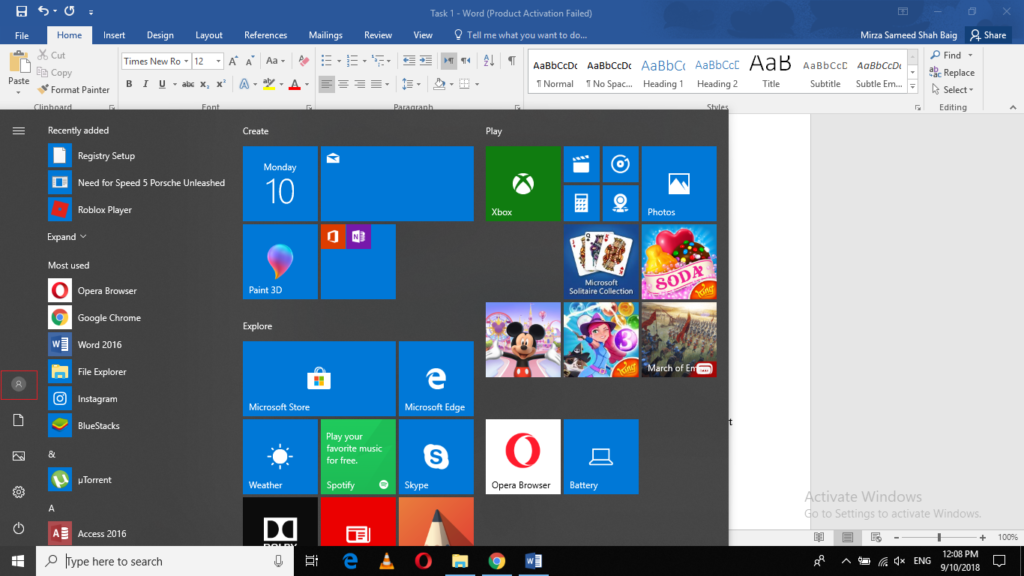
- Now click on the User icon to launch a menu as shown in the image below:
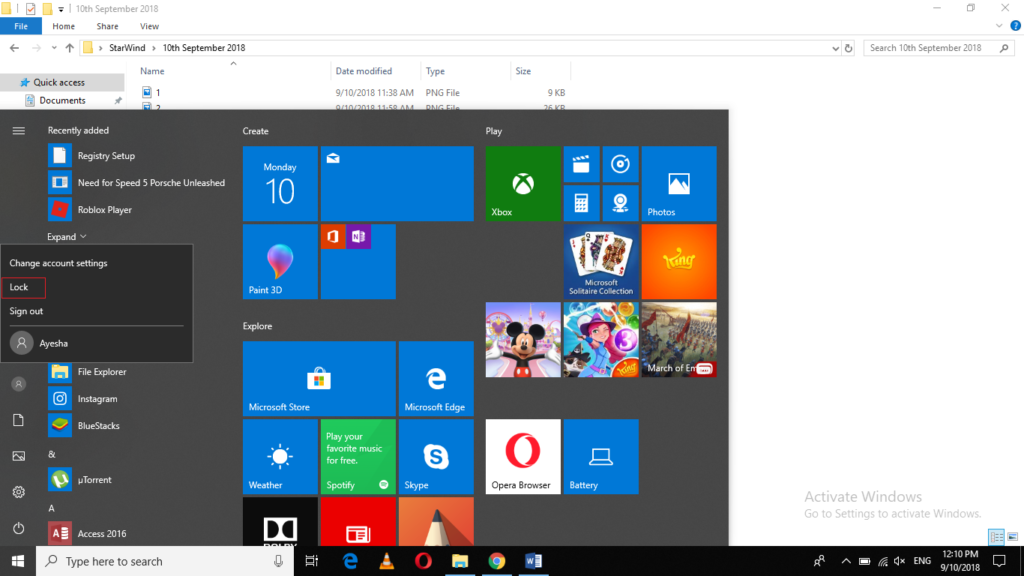
- Finally, click on the Lock option to lock your PC in Windows 10.
Method # 2: Use the Ctrl+ Alt+ Del menu to lock your PC
In this method, we will tell you how you can lock your PC using the Ctrl+ Alt+ Del menu. For doing this, you need to proceed as follows:
- Press Ctrl+ Alt+ Del from your keyboard.
- As soon as you will press these keys, the following menu will appear:
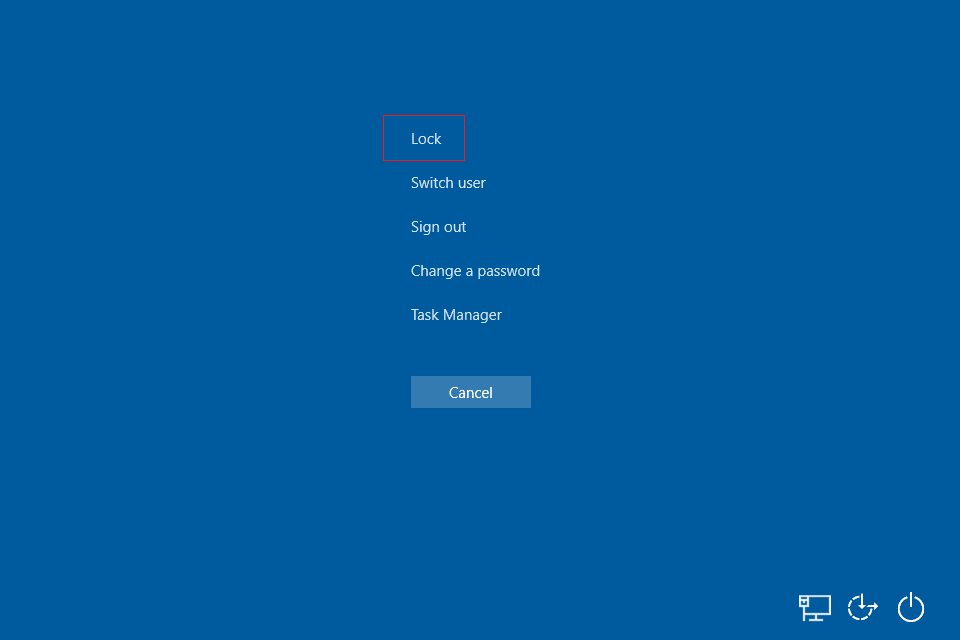
- Just click on the Lock option as highlighted in the image shown above to lock your PC using Windows 10.
Method # 3: Use Win+ L to lock your PC
In this method, we will tell you how you can lock your PC using a keyboard shortcut in Windows 10. For doing this, you need to perform the following steps:
- Just press Win+ L to lock your PC quickly using Windows 10.
Related Articles
How to Split the Screen on your Computer in Windows 10
Split one screen at a time using Keyboard shortcuts You can make use of the split screen functionality by means of keyboard shortcuts. Follow the steps here below – Choose the window you are planning to move. Hit the keys Windows Key + Left ...